



Looking to watch England's World Cup match tonight?
There are several ways to stream the game, such as tuning into Roku's dedicated streaming hub or watching via your Amazon Fire TV devices. However, if your Wi-Fi connection continuously cuts out, you could miss key highlights.
If you need a bit of a connection boost, we've put together three easy-to-follow tips, so you don't miss any part of the match.
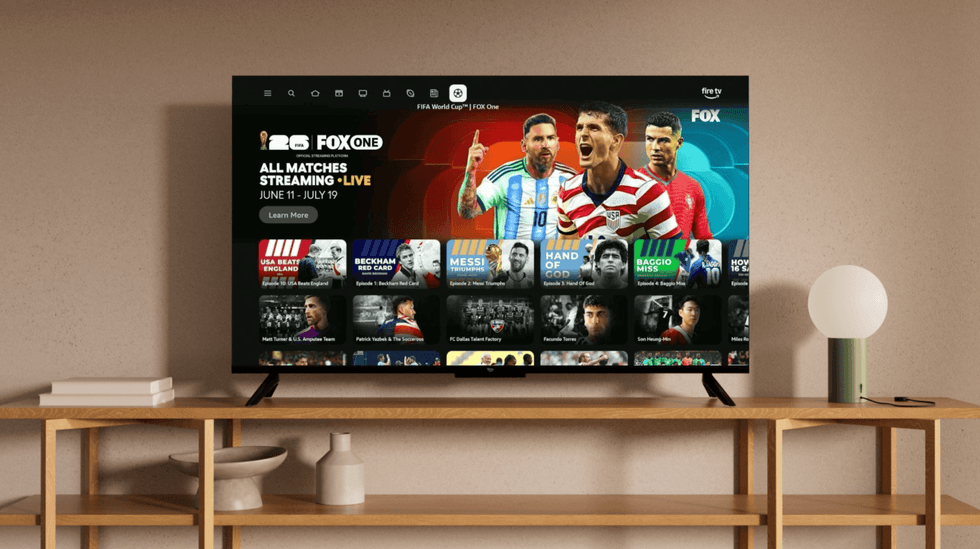
The World Cup runs from June 11 to July 19, 2026
| AMAZON PRESS OFFICE1. Restart your Wi-Fi router
If your stream keeps freezing just before kick-off, a quick router reboot can often restore normal speeds and reduce buffering within a few minutes. You'll need to unplug both your modem and router from the wall and wait at least 30 seconds.
Then plug the modem back in first and allow it to fully reconnect before powering up the router. This simple reset clears temporary memory issues, refreshes network settings, and can resolve performance slowdowns caused by long periods of continuous use.

By restarting your Wi-Fi router, you can have the match streaming again without buffering within a few minutes
|GETTY IMAGES
2. Lower your video quality
Streaming in 4K provides excellent picture quality, but it also requires significantly more bandwidth than HD or standard-definition video.
For instance, a 4K football stream may require 20–25 Mbps or more, while a 1080p stream typically needs only 5–8 Mbps. Switching to HD could eliminate buffering during crucial moments of the match.
If your internet connection is struggling to keep up, reducing the stream quality to 1080p or 720p can dramatically improve playback stability while still providing a great viewing experience.
Follow these instructions to change your video quality:
- Open the stream settings (usually represented by a gear icon)
- Select Video Quality
- Choose 1080p or 720p instead of Auto or 4K.
LATEST DEVELOPMENTS
3. Disconnect idle devices
Every device connected to your Wi-Fi shares your available bandwidth. Smartphones, tablets, smart TVs, gaming consoles, and laptops can all consume data in the background through software updates, cloud backups, or downloads — even when they appear inactive.
For example, if someone in your household is downloading a large game update while you're trying to watch England play, your stream may start buffering or drop in quality. Pausing that download can free up bandwidth immediately.
Before a match, you'll want to avoid the following:
- Turn off Wi-Fi on devices not being used
- Pause large downloads and software updates
- Ask house members to avoid bandwidth-heavy activities during the match
- Disconnect guest devices that don't need internet access