Thank you for subscribing!
If you've ever settled in for a cosy evening of telly, only to be met with endless buffering and painfully slow loading screens on your Fire TV Stick, don't worry. There's a fix.
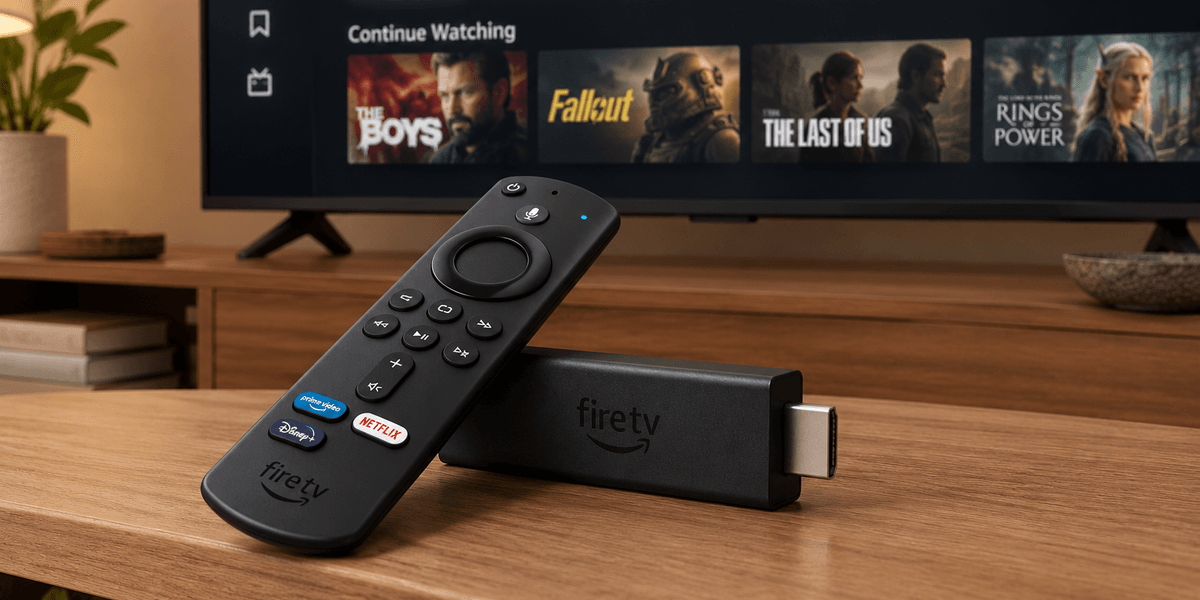
Amazon Fire TV Sticks are compact streaming devices that plug directly into your TV’s HDMI port, giving you access to apps and services such as Netflix, Prime Video, Disney+ and YouTube. They’re an easy way to turn a compatible TV into a smart streaming hub, with the Fire TV interface controlled using the included remote.
And there's a quick settings tweak that can make a big difference to performance on these remotes, even if you're using an older model. It's also meant to save your data.
The culprit is a feature called Featured Content autoplay. It's meant to automatically play preview clips on your home screen while you're browsing through titles.
These clips start loading before you've chosen anything to watch, which means they're quietly taking bandwidth that your actual stream needs — leaving everything feeling sluggish and unresponsive.
To get rid of buffering, you will want to switch this feature off.
First, grab your Fire TV remote and hit the Home button, then navigate to Settings. From there, go into Preferences and tap on Featured Content.
You should see an option called Allow Video Autoplay — toggle this off. Then repeat these steps for Allow Audio Autoplay.
Once you head back to the home screen and start scrolling, you should notice things feel noticeably snappier. Content is meant to load faster, and that annoying lag while browsing should be gone.
If things still aren't running smoothly, though, there are a few more tricks worth trying.
You can hold down the Select and Play and Pause buttons on your remote at the same time, and the stick will restart itself. Alternatively, you can unplug the device entirely, wait about 10 seconds, and then plug it back in — both methods are meant to give you the same result.
It's also worth checking whether your Fire TV Stick's software is up to date. To check, head back into Settings and look for any available updates. Outdated software can cause all sorts of performance hiccups or make your device more susceptible to security issues, so it's always best to check this every so often.
And where you place your Fire TV Stick matters more than you might think. Try to keep it within clear sight of your Wi-Fi router, and avoid hiding it behind the television where the signal can struggle to reach it.
If your telly sits a long way from the router, an HDMI extender cable can bring the stick round to the front of the set, giving it a much better connection.
It's also worth moving any baby monitors or cordless phone bases away from the area, as these gadgets can interfere with your Wi-Fi signal and make buffering worse.