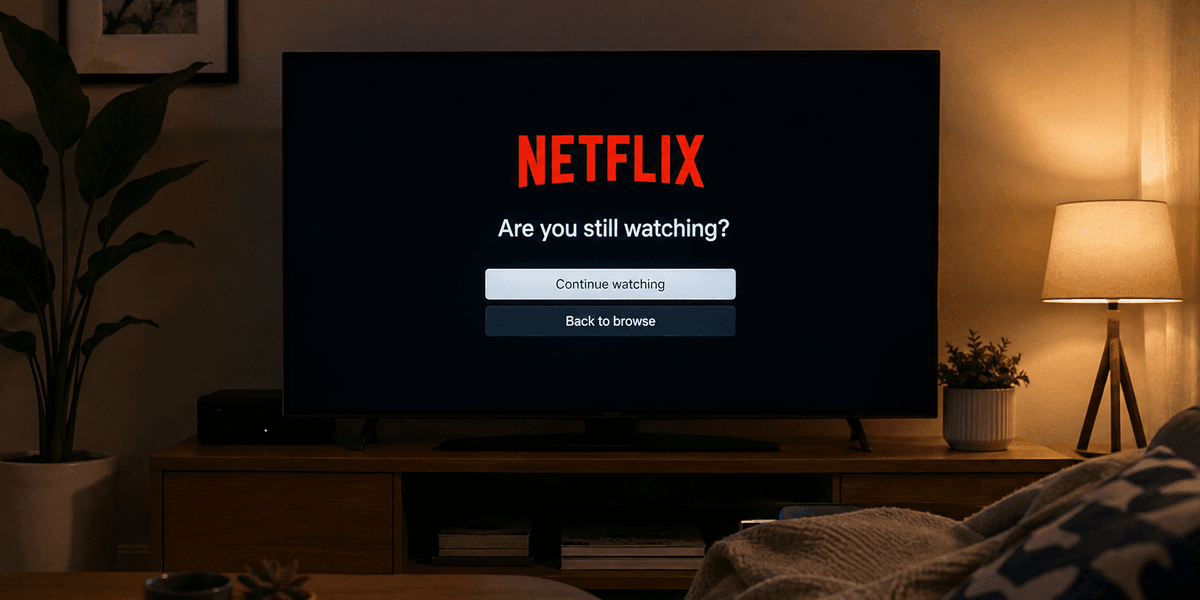
Want to stop Netflix asking "Are You Still Watching?" every time you settle in for a long binge-watch? You can switch off this pop-up in just a few clicks.
If you're unaware, this pop-up will take over your entire screen and pause your show, documentary, or film while it double-checks whether you're still actively watching... or if you've walked out of the room and left the telly on. It kicks in after 90 minutes or three consecutive episodes without any video controls, like Next Episode or Skip Intro.
Netflix's autoplay feature is the reason the prompt appears in the first place.
If you disable autoplay, then episodes will stop when the credits roll instead of automatically jumping into the next instalment — meaning Netflix no longer needs to check whether you're still watching. The reason the prompt is tied to autoplay is that Netflix automatically starts the next episode around five seconds after the previous one finishes. The seamless back-to-back viewing eventually triggers the inactivity check.
It won't trigger during feature-length films. Autoplay is switched on by default for new Netflix profiles, which means many users have never changed the setting.
Once episode autoplay is switched off, Netflix will stop at the end of each episode, giving you full control over when you continue watching. Here's how you can toggle it off on your account.
To turn off the prompt on a desktop or laptop, head to Netflix.com and sign in. You'll want to select your profile icon in the top-right corner, click Manage Profiles, and choose the profile you want to change.
Under Preferences, select Playback Settings, untick "Autoplay next episode in a series on all devices", and press Save. The change may take a minute or two to take effect.
If you're using the Netflix app for iOS or Android, tap My Netflix in the bottom-right corner, select Manage Profiles, choose your profile, and switch off Autoplay Next Episode. Tap Done to confirm.
The setting applies to your Netflix profile rather than a specific device, so you only need to change it once. After that, it will work across your phone, tablet, smart TV, and browser.
It's important to note that if multiple people use separate profiles on the same account, they will need to update their own settings individually. Changing autoplay on your profile won't affect anyone else.
So why does Netflix ask "Are you still watching?" in the first place? The prompt appears after three consecutive episodes or around 90 minutes of continuous viewing. On devices other than televisions, it usually appears when there has been no interaction with the video controls during that period.
Netflix says the feature is designed to solve two problems. First, it helps prevent you from accidentally sleeping through episodes and missing important moments. Second, it stops Netflix from continuing to stream when someone is no longer actively watching, helping avoid unnecessary data usage.
It can also prevent your device's battery from being drained by hours of playback running in the background. Netflix also has a separate autoplay option for previews and trailers while browsing, but that does not trigger the "Are you still watching?" message.